

☀️ For Everyone · Practical AI for life and work
No technical background needed. Just useful ideas and experiments you can try yourself.
Builders: expect practical examples of using AI, rather than code or technical deep dives.
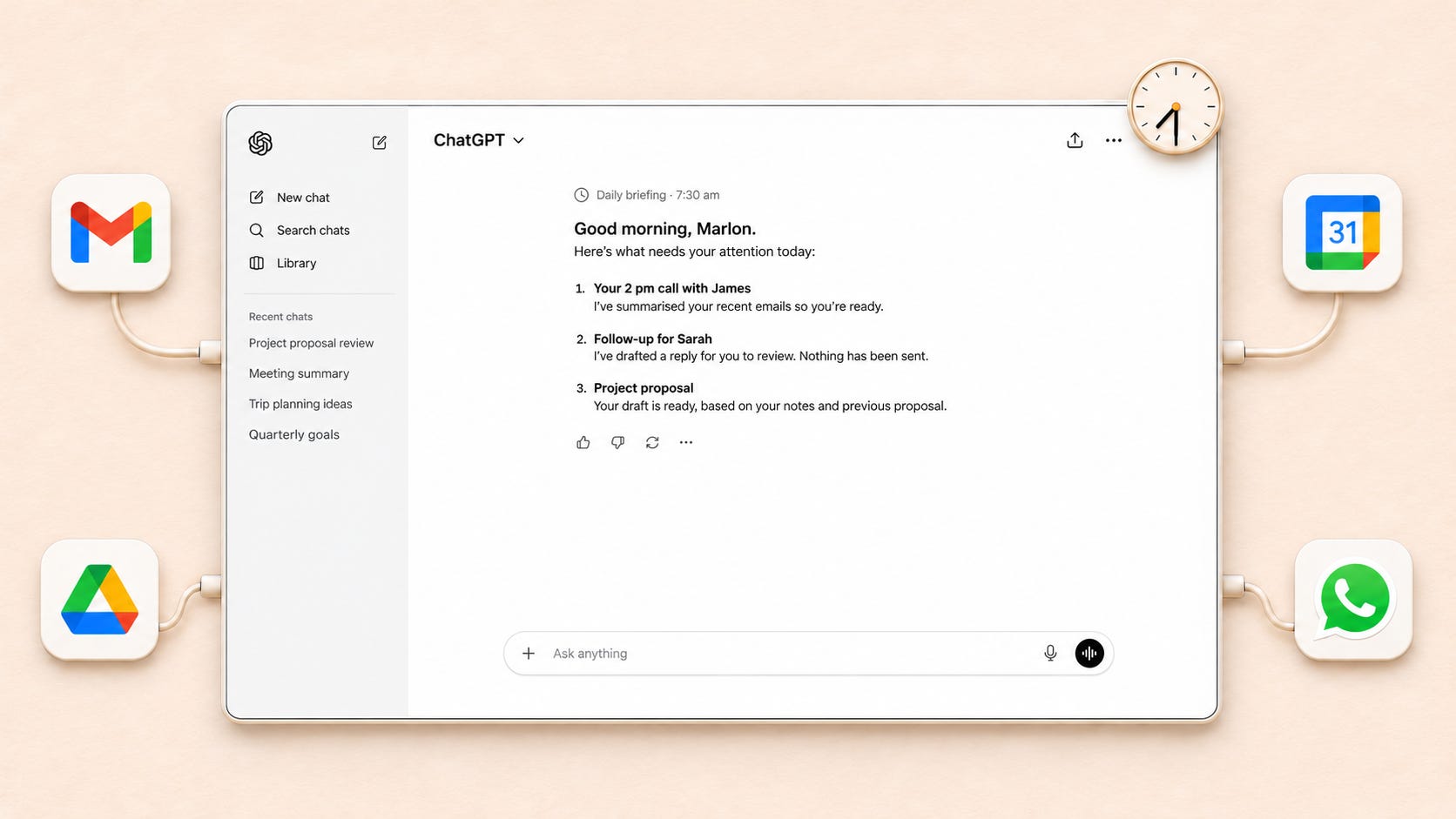
How do you actually use your AI?
Be honest, how do you use your AI today? For most people I talk to, it’s still a chat window. They open it and start typing (or, if they’re a bit more advanced, they talk to it using dictation). But the problem is that every time you start a new chat, you need to give it context.
Many times you ask the AI about something and you have to paste in an email, a screenshot of your calendar or whatever it is, just to get the answer you need. And you go through this cycle every single time.
If you think about it, that’s a very reactive way of using AI. It sits there waiting for you to remember to ask, and when you do, it only knows what you happen to feed it. Besides all the manual work (and sometimes I even wonder whether doing it yourself would be faster!), you’re the one deciding what context the AI gets, so you’re restricting it to whatever you paste in.
Now imagine if, instead of you taking a screenshot of your calendar or copying an email, the AI was actually connected to your email. It wouldn’t just look at the one email you pasted, it would go and look for your other conversations with that person, so its answer is grounded in a lot more context. For your calendar, it might look at similar meetings you’ve had, or spot a pattern you hadn’t noticed.
When your AI is connected to your data, a very different capability comes online. What would take you hours of digging, it does in seconds, and you’re not constrained anymore. Many times we don’t do something just because we know it will be really hard and time-consuming, but when your AI can go and get all of this itself, just imagine what it can do!
Let me give you a couple of real examples from my own week.
Replying to an old contact — a friend I’ve known for years messaged me asking what’s next for me. Before drafting a reply, my AI went back through our earlier WhatsApp chats and picked up context I hadn’t mentioned such as that we’d signed an NDA to look at a startup idea together and he’d invited me to a product demo. So it understood he wasn’t just making small talk, he was genuinely asking whether I was free to get involved. The draft it wrote was about my actual situation, not a generic “I’m exploring options”.
Inviting people to this blog — when I launched AI with Marlon, I asked my AI to help me pick who to invite. Instead of just taking my contact list at face value, it went through my message history to work out who each person actually was to me. It flagged a friend who had already subscribed, addressed an old colleague the way I’d normally talk to him, and left out family and the tradespeople in my contacts, without me having to spell any of that out 😅
In both cases I didn’t have to explain a thing. The context was already there, because the AI could go and find it.
And that’s only half the story. Once your AI is connected, you can flip it from reactive to proactive: instead of waiting for you to ask, it checks your inbox, keeps an eye on your calendar and nudges you before something slips. In this article I’ll show you how to do both. First connect it to your world, then put it to work on a schedule so it starts looking out for you 😉
So why does context matter so much?
Imagine you hire a brilliant new assistant. Super smart, has read pretty much everything, and is ready to help. But on their first day you don’t give them access to your email, your calendar or any of your files. Every time they want to help, they have to come and ask you. Something simple like, “When are you free on Thursday?”, still takes your time to answer.
Yea, I guess, they’d still be useful, but you’d quickly wonder why you hired them. And that’s exactly how most people use AI today!!
Your AI knows a lot about the world, but it knows nothing about your world until you let it in.
The good news is that letting it in has become really easy. ChatGPT, Claude and Gemini all let you connect your email, calendar and files easily, and most of the other apps you use can now be connected too. All you have to do is ask it to! Let’s go through it.
Where do you start?
I would start by connecting with the three things your life already runs on:
Your email - where your conversations live. Your AI can look up what you’ve actually discussed with someone, so its answers are grounded in your real history. And if you’re not much of an email person? Connect your messaging app instead.
Your calendar - where your events live, so your AI knows what’s coming up, how long it takes etc..
Your files - so your AI can help you do things. Example if you need to draft a client proposal, it can pull up your last one and your notes, and have a first draft.
Each of the three big AIs has its own name for these connections, which doesn’t help, but it’s really the same idea everywhere:
You’ll be asked to sign in with your Google (or Microsoft) account and approve access, and that’s it.
Once connected, it’s not just reading. In ChatGPT, Gmail can search, summarise and draft replies, and send them from your address once you approve. Claude can draft emails and send, reply to and forward them, asking for your approval first by default. And Gemini reads your Gmail, Calendar and Drive once you switch on the Google Workspace app.
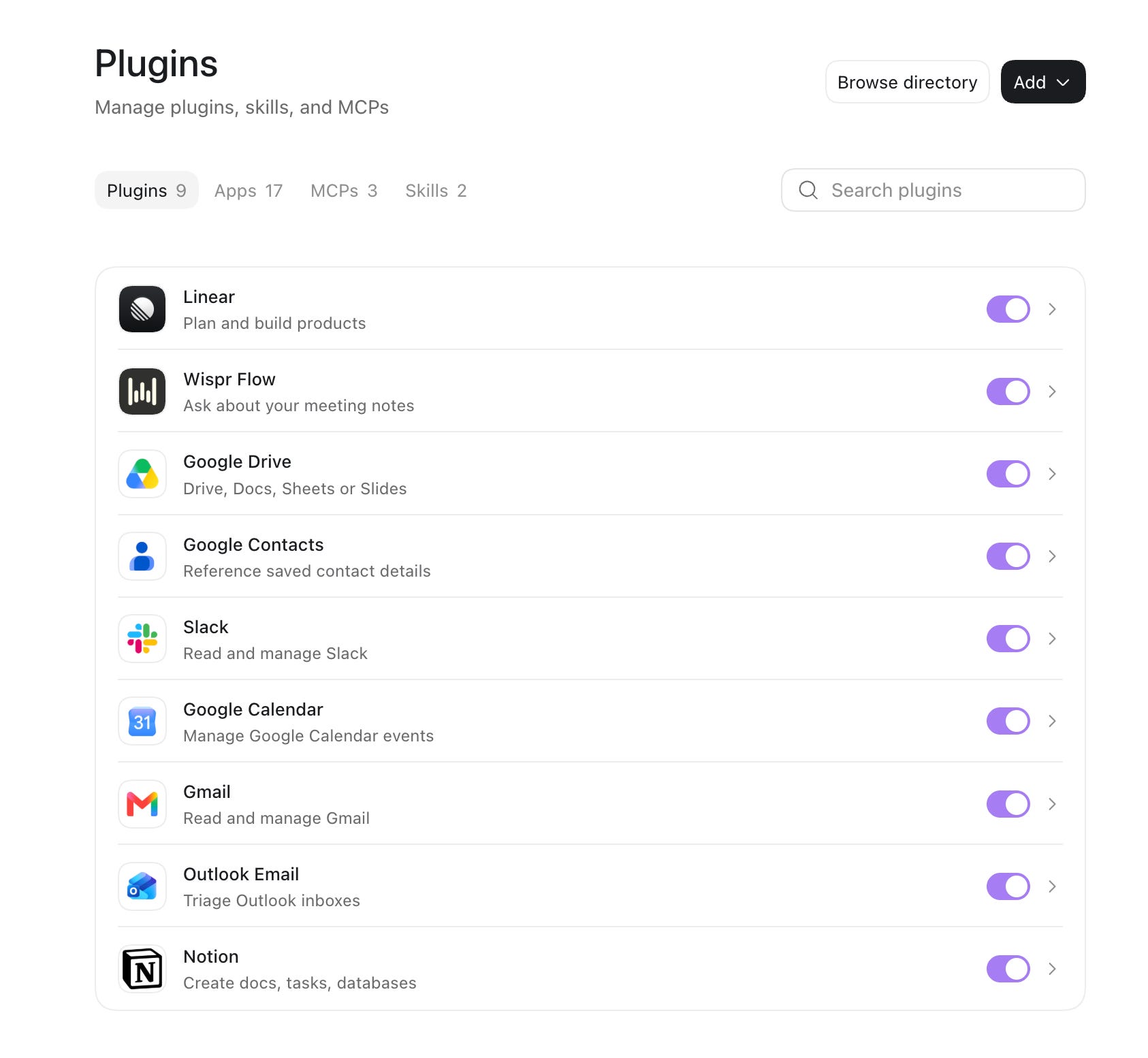
And don’t worry, connecting your email doesn’t mean your AI will suddenly start firing off emails to all your contacts! By default, these tools ask before taking actions like sending an email, though exactly how depends on the app and the permissions you’ve given it. My advice: keep “ask me first” switched on for anything that sends, books or deletes, at least until you trust it. And yea, you can always disconnect any app at any time.
So what’s this MCP thing?
As you start connecting apps, you might come across the term MCP, short for Model Context Protocol. Think of it a bit like USB-C for AI: a common way to plug different tools and apps into your assistant.
A connection can let your AI search for information or do things in an app, depending on what that connection supports and what you allow. MCP helps standardise those connections, which is why the same app can often plug into ChatGPT, Claude and Gemini. You don’t need to understand what’s happening behind the scenes to use them, just like you don’t need to understand USB-C to plug in your headphones!
So, what about all your other apps I use?
Email and calendar are just the start. Think about all the other apps your life runs on: your notes app, Slack, your to-do list, Spotify, the tool you use at work every day. A growing number of apps now have a connector (most of them built on MCP), and each AI has a directory, a bit like an app store, where you can find the apps you use and connect them:
ChatGPT — the Plugin Directory. OpenAI says its plugin ecosystem now reaches over 4,000 apps.
Claude — the Connectors directory (Settings → Connectors → Browse connectors, or have a look at claude.com/connectors).
Gemini — Connected Apps, which now includes third-party apps like Adobe, Airtable, Spotify and Ticketmaster. If you’re an adult in the US with a personal Google account, you can even add a custom app by pasting its MCP link on gemini.google.com.
A few tips before you go connecting everything:
Just ask your AI first — rather than going hunting through settings, simply ask ChatGPT or Claude something like “can you connect to my Notion?” Many times it will go and find the right plugin or connector for you and walk you through setting it up.
Browse the official directory — think of it like the App Store or the Play Store, but for your AI. Each one has its own, so you can scroll through, see what’s there and connect with a couple of taps. Where you can, connect from there rather than from random links, and if you do add a custom one, make sure you trust who’s behind it.
Check what it can do, not just what it can see — some connections only read, others can also create, send or change things. Have a quick look at the permissions when you connect.
What if your app doesn’t have a connector?
Some things will probably never have a connector. Your kid’s school portal, the council page for bin collections, your energy account, the gym booking site... we all have a few of those. This is where computer use comes in, and honestly, it’s one of the things I’m most excited about. With computer use, you can actually rely on your AI to go and do the job for you, rather than just handing you a bunch of text and instructions to follow yourself.
Computer use simply means the AI uses a browser (or your computer) the same way you would. It looks at the screen, clicks, types and moves between pages. So if there’s no plug for an app, you can teach your AI to go and get what it needs itself.
Let me give you an example of why this matters so much. Say you need to fill in a long application form on a website: a visa, a mortgage, a school place, a grant, whatever it is. All the information it asks for already exists somewhere. Your passport details are in a PDF on your drive, your address history is in old emails, your employer’s details are in a contract on OneDrive. So what do you do? You open everything, go hunting through your emails and files, and copy it all across, field by field. An hour later, you’re still on it - and wondering “WHY DOES IT HAVE TO BE THIS HARD!!!” we’ve all been there!
Now imagine your email and your files are already connected to your AI. It can go and search for that information itself. The only missing piece is the form, and that’s exactly what computer use is for. You give your AI the link to the form, it goes through your emails and files, works out what goes where, and fills it in for you. You leave it to do its thing, come back, review every field and press submit yourself.
Connections give your AI the knowledge. Computer use gives it hands.
And once you start looking, these are everywhere: booking a few appointments across different sites, updating your details on a portal that has no app, comparing prices across five shops and putting it all in one place. All the boring, fiddly stuff in between that you’d normally do yourself.
Here’s how each of the three handles it:
Claude — this is actually built in as the fallback. When there isn’t a connector for what you need, Claude may do the task in the browser built into the Claude desktop app, or in your own Chrome through Claude in Chrome. You switch on computer use in the desktop app settings (it’s in beta on paid plans).
ChatGPT — there are two ways. On your computer, open the ChatGPT desktop app (Codex now lives inside it too), start a Work chat and install the plugin you need from Plugins: Computer Use lets it open the apps on your computer and click through them, say to test something for you, while Chrome lets it use your own browser with all your sign-ins. And if you’d rather stay in the browser, the ChatGPT extension for Chrome works from ChatGPT on the web too: mention @Chrome and, in Work, it can fill out forms, send messages and download files for you. Work needs a paid plan.
Gemini — in Task mode, Gemini can work on websites for you in your own Chrome or in a browser Google runs for you (not available in the UK or Europe yet).
A few things to keep in mind when you start using it:
Connector first — if an app has a proper connection, that’s usually quicker and more reliable. Computer use is perfect for filling the gaps.
You stay in charge of sign-ins — it works with the sites you’re already logged into, so you do the logging in.
Start simple — something like checking the school portal for new messages is a great first job, and once you’re comfortable, let it fill in forms for you.
Keep your computer on — with Claude, your computer needs to be awake and the desktop app open while it works.
OK, I’m connected. Now what?
The best way to feel the difference is to ask something you could never have asked before. Here are a few prompts to try. They work in all three, though what each can actually pull in depends on what you’ve connected:
Look at my calendar for next week. Which days are overloaded,
and how can I optimize my focus time?

I have a call with [name] at [time]. What have we talked about
over email recently, and is there anything I still owe them?

Is there anything in my inbox that needs action before Friday?
Keep it to a short list.
To give you a feel for it, here’s how I actually use my own main AI assistant, Chief, which I run on Grok Bot (of course I just asked Chief for the examples rather than remembering myself!). Nothing fancy, it’s just connected to my apps:
“Who’s waiting on me?” — it reads my Gmail and Outlook and tells me exactly who’s owed a reply, like an old friend asking whether my plans have changed, or someone needing my confirmation before a filing deadline.
“Set up lunch with [a friend] and invite him” — it creates the event, adds his email and sends the invite. While it’s in there, it even spots things like a duplicate hold I can delete.
“Any messages I should know about?” — WhatsApp and LinkedIn come into the same picture, and it flags anyone who’s waiting on me - for these ones I use ‘Computer use’ as I couldn’t do it via MCP.
Remember what I said at the start about reactive vs proactive? Notice that all of these are still me asking. That’s already super useful, but it’s reactive. The AI only works when I remember to ask. The really interesting part starts when your AI becomes proactive and starts checking things for you, nudging you before something slips. And for that, you need schedules.
From reactive to proactive: putting your AI on a schedule
A schedule is simply a prompt that runs on its own, at a time you choose, using all the connections you’ve just set up. Every morning, every couple of hours, every Friday afternoon. Some people call these AI loops, and once you start using them, you’ll see ideas for them everywhere.
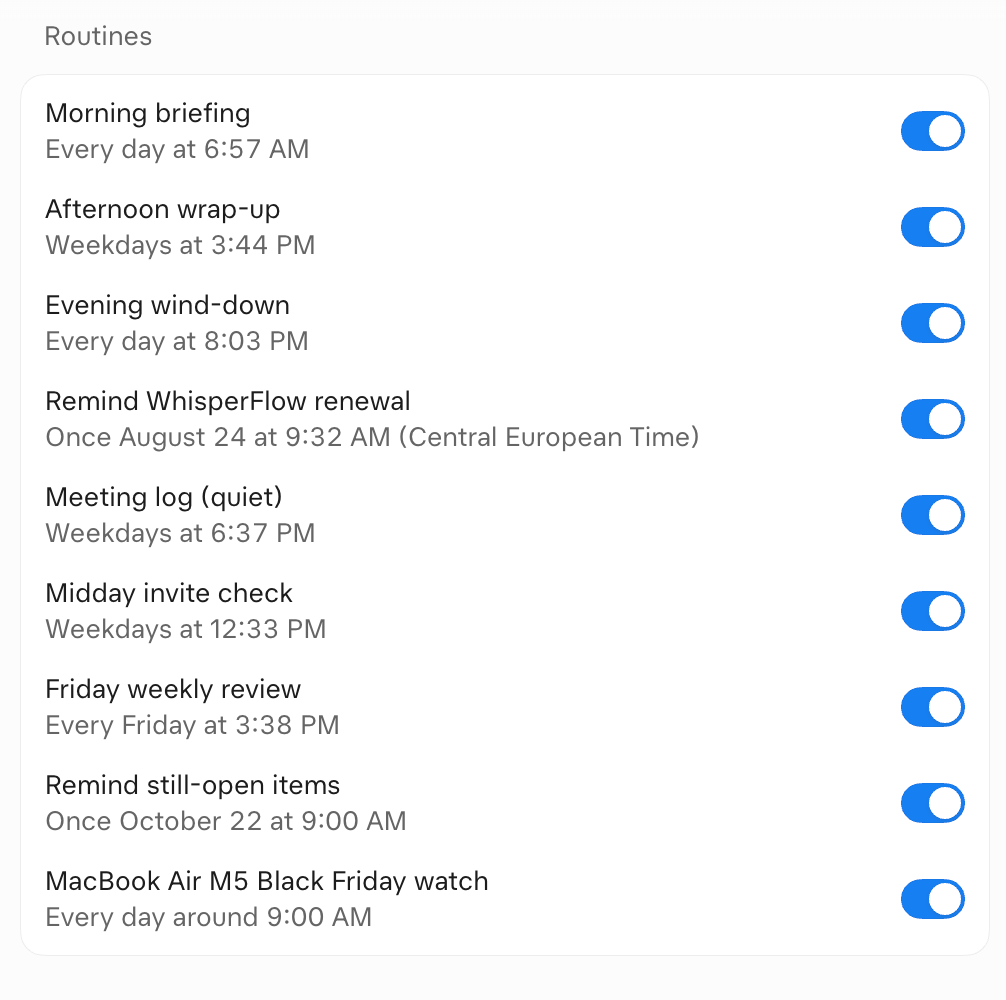
For example, Chief tracks my meeting hours against my targets and warns me when I’m getting close to the limit, and it’s keeping an eye out for Black Friday deals on a MacBook Air, only pinging me when the price drops. I never ask for any of that, it just happens.
The good news is that all three support schedules:
ChatGPT — scheduled tasks can run once, on repeat, or keep watch and only notify you when there’s something to report, and they can use your connected apps.
Claude — scheduled tasks can be set up from any chat, and they run in the cloud, so they keep going even when your laptop is closed.
Gemini — scheduled actions let you turn any prompt into a recurring one, and Task mode can even kick off when something happens, like your flight getting delayed (Task mode isn’t available in the UK or Europe yet).
How do you set one up?
These days, you just tell your AI. No settings, no forms. For example, this is roughly the one I use to keep my meetings in check:
Every weekday at 7:30am, look at my calendar for the next five
working days. If any day has more than 4 hours of meetings,
suggest which meetings I could shorten or move, and draft a
short note to each organiser. Don't send anything until I say so.
The AI sets up the schedule itself. Every morning I get a short message with its suggestions, and all I have to say is “yeah, do it” or “no, let’s leave it for now”. If you read about Tempo, this is a simpler version of the same idea. The approach works in all three, but what each can connect to and do, and on which plan and in which country, still differs.
If you ever want to tweak a schedule by hand, change the time, pause it or delete it, each one has a place for that:
ChatGPT: the Scheduled page in the sidebar.
Claude: Scheduled in the sidebar.
Gemini: Scheduled in the sidebar on gemini.google.com.
A couple of tips from my own experience:
Keep it quiet: tell it to only message you when something actually needs your attention, otherwise you’ll just create another inbox to ignore 😅
Ask before acting: let it suggest and draft, and approve anything that gets sent.
Start with one: a morning brief of your calendar and anything urgent in your inbox is a great first schedule. Then add another when you notice yourself checking the same thing over and over.
Screenshot from Chief’s schedules
So, where do you start?
Start small. Today, connect your email and your calendar, and try one of the prompts above. And once that feels natural, set up your first schedule, even if it’s just a short morning brief. You’ll be surprised how different your AI feels once it actually knows what’s going on in your life, and starts looking out for you without being asked.
And this matters more than ever. We’re now seeing a whole wave of always-on bots: Claude has Duet, OpenAI has dots and SpaceXAI has Grok Bot (these are all just weeks or a few months old, so it’s still very early days). They take everything in this article to the next level, but under the hood they run on exactly the same two things, connectors and schedules. Get comfortable with those now and you’ll be ready for whichever one you end up using. And I must admit, I’m completely hooked on mine 😅
In future posts I’ll deep dive into each of my agents: Chief, Vita and Coach Milo. How I set them up, what they’re connected to and which schedules they run, so you can model your own agents the same way I did mine.
Until then, go connect your world and put it to work, you won’t look back!! Trust me!
Special thanks to Claude for helping me research and write this article :)